How to Make a Custom Pokémon Card: A Step-by-Step Guide
Everything you need to design your own Pokémon card online: picking a template, adding artwork, setting HP and attacks, and downloading or printing the finished card.
You can make your own Pokémon card in a few minutes with a free online card maker. There is nothing to install and you do not need design software. This guide walks through the whole process in the CreatePokeCard editor, from choosing a template to downloading or printing the finished card, and explains what each part of a card does so your design looks right.
What you need before you start
- An idea. A pet, a friend, an original creature or a favorite character all work. Decide on a name and a type (Fire, Water, Grass and so on) before you open the editor.
- Artwork. A photo or drawing from your device, or an image made with the built-in AI generator. See our guide to creating card art with AI.
- A web browser. The card maker runs online on a computer, tablet or phone.
You can design and download a card without an account. A free account lets you save cards to your collection, show them in the community gallery and generate artwork with AI.
The parts of a Pokémon card
A custom card looks convincing when every element sits where players expect it. These are the parts you will fill in:
- Card name at the top, with the stage (Basic, Stage 1 or Stage 2) in the upper-left corner. Evolved Pokémon also show which Pokémon they evolve from.
- HP (Hit Points) and the type symbol in the top-right corner.
- Artwork, the picture in the middle of the card.
- Attacks. Each attack has an Energy cost (the symbols on the left), a name, the damage number on the right and an optional description of its effect.
- Weakness, resistance and retreat cost along the bottom of the card.
- Footer details such as the illustrator credit, the card number, the rarity symbol and a short line of descriptive text.
Step 1: Choose a style and a template
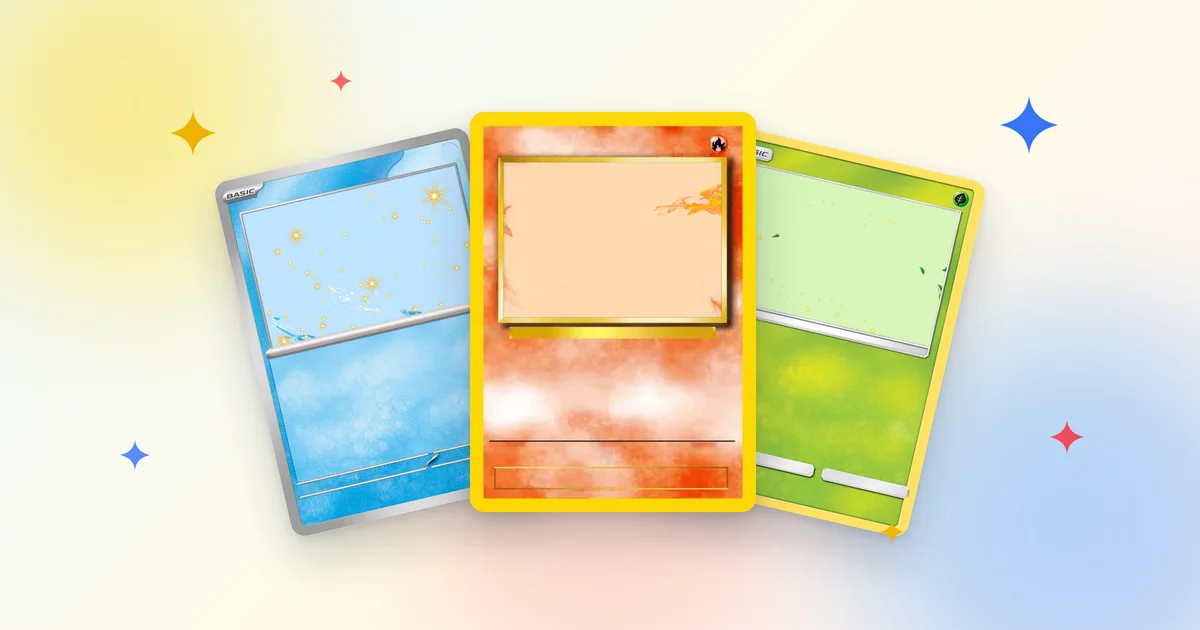
Open the editor and pick a generation in the Information section. It sets the overall look of the card. Then choose a template from that style.
| Style | Templates |
|---|---|
| 1st Gen | Regular, Trainer |
| TCG Pocket | Regular, Full Art, Trainer, Trainer Full Art |
| Scarlet & Violet | Regular, Regular EX, Full Art, Full Art EX, Trainer, Trainer Full Art |
| Sun & Moon | Regular, Full Art, GX, GX Full Art, GX Rainbow, Tag Team, Tag Team Full Art, Tag Team Rainbow |
A few notes to help you choose:
- 1st Gen is the classic look of the earliest cards, with a yellow border and a framed picture.
- TCG Pocket follows the style of Pokémon Trading Card Game Pocket, the mobile game released on October 30, 2024.
- Scarlet & Violet is the modern style. Pokémon ex returned to the game in the Scarlet & Violet expansion in March 2023, and unlike the older Pokémon-EX they can be Basic, Stage 1 or Stage 2 Pokémon.
- Sun & Moon brings back Pokémon-GX, which were introduced in the Sun & Moon expansion in February 2017, and TAG TEAM Pokémon-GX, which followed in the Team Up expansion in February 2019. The GX and Tag Team templates give the card a GX attack and room for a third attack.
Full Art templates let the artwork fill the entire card, which suits detailed illustrations and photos.
Step 2: Add the name, type and HP
Still in the Information section:
- Type the name. On the modern styles you can also add a prefix or a suffix.
- Pick the type. It changes the card's color and Energy symbol. You can add a second type for a dual-type card.
- Set the HP. As a rough guide, small Basic Pokémon usually sit somewhere between 60 and 100 HP, while the largest modern Pokémon ex go above 300.
Depending on the style, this section also offers frames, icons, tags and badges that change the card's border and markings.
Step 3: Add your artwork
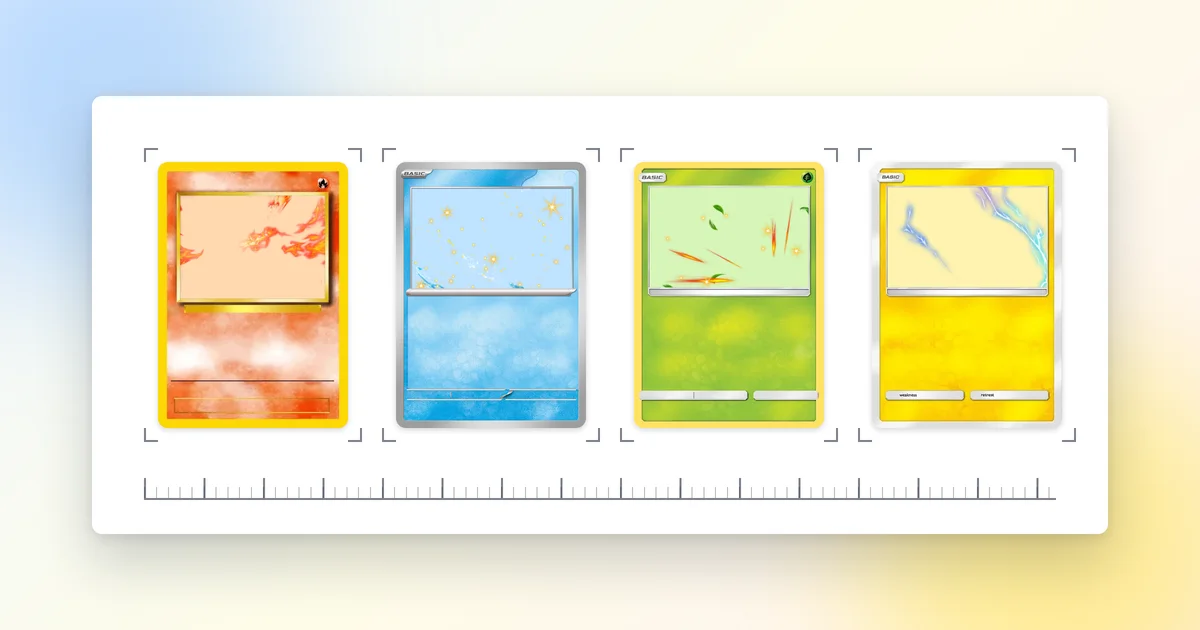
Go to Image & Background and upload a picture. Drag it to reposition it and resize it until it fills the picture window. You can also change the background color, and on the modern styles you can stack up to five visual effects, such as sparkles, flames, lightning or a rainbow shimmer, over the card.
If you do not have a picture, open Generate with AI. You can describe the artwork in words, or upload a photo and have it redrawn in a card-art style.
Step 4: Set the evolution and details
In the Evolution section choose Basic, Stage 1 or Stage 2. For an evolved Pokémon, enter the name of the Pokémon it evolves from, and add its small portrait if you have one.
The Attributes section holds the species line found on many cards: the category, height and weight.
Step 5: Write the attacks
Each attack has four parts:
- Energy cost. One or two Energy for a weak attack, three or four for a strong one.
- Name. Short and descriptive works best.
- Damage. A number, optionally followed by +, − or × when the description changes the total.
- Description. What else the attack does, for example flipping a coin or discarding Energy.
Two tips keep a card believable. First, match the damage to the cost: a one-Energy attack that does 200 damage looks wrong at a glance. Second, keep descriptions short, because long text has to shrink to fit.
On the GX and Tag Team templates, the first attack slot becomes the GX attack. In the real game a player may use only one GX attack in an entire game, so it is normally the strongest move on the card.
Step 6: Finish the footer
The Card Footer section completes the card:
- Weakness and resistance, each with a type and a value.
- Retreat cost, from zero to five Energy.
- Illustrator, card number and rarity. On official cards a circle marks a Common card, a diamond an Uncommon card and a star a Rare card.
- Flavor text, one or two sentences about your Pokémon.
If you are making a card in another language, the Translations section lets you rename the printed labels such as weakness, resistance and retreat.
Step 7: Download, save or print
When the card looks right you have three options:
- Download. The download button in the preview toolbar saves the card as a PNG image at 750 × 1050 pixels, with no watermark.
- Save. Press Save Card to keep the design in your account. Saved cards appear in the community gallery, and you can make any of them private from My Cards.
- Print. Press Add to Cart to order a physical copy as a standard or holographic card, with an optional custom back. Our printing guide covers sizes, card stock and finishes.
Design tips for a card that looks real
- Use a sharp image. Blurry artwork is the most common giveaway. Start with the largest picture you have.
- Keep the subject centered. Leave a little space around it so nothing important is hidden by the frame.
- Match the type to the art. A blue, watery picture on a Fire card looks out of place.
- Borrow the rhythm of real cards. Most cards have one or two attacks and a single line of flavor text.
- Check the spelling. Read the name, attacks and flavor text once more before you download.
Are custom Pokémon cards allowed?
Custom cards are fan creations. They are not official products and are not affiliated with or endorsed by Nintendo or The Pokémon Company. Treat them as personal items: gifts, keepsakes, display pieces and cards for casual games with friends.
Two limits are worth knowing. Official Play! Pokémon tournaments allow only genuine Pokémon Trading Card Game cards, so a custom card cannot be used in a tournament deck. And The Pokémon Company's legal terms limit fan-made work to personal, noncommercial use, so custom cards should never be sold or passed off as real ones.
Ready to try it? Open the card maker and build your first card, then browse the gallery to see what other creators have made.
Frequently asked questions
Can you make your own Pokémon card?
Yes. With an online Pokémon card maker you choose a template, add your own artwork and fill in the name, HP, attacks and other details. The finished card can be downloaded as an image or ordered as a printed card.
How do you make a Pokémon card for free?
Open the CreatePokeCard editor, build your card and use the download button to save it as a PNG. Designing and downloading are free and do not need an account. You only pay if you order a printed copy or buy extra tokens for AI artwork.
Do I need an account to create a card?
No. You can design and download a card without signing in. A free account is needed to save cards to your collection, show them in the gallery and use the AI art generator.
What are the parts of a Pokémon card called?
The main parts are the card name, HP, type, stage (Basic, Stage 1 or Stage 2), the artwork, the attacks with their Energy cost and damage, and the weakness, resistance and retreat cost at the bottom. The footer also carries the illustrator credit, the card number and the rarity symbol.
How do you make a full art Pokémon card?
Pick a Full Art template in the editor. Full Art templates are available for the TCG Pocket, Scarlet & Violet and Sun & Moon styles, and they let your artwork cover the whole card instead of sitting inside a framed window.
How do you make a Pokémon ex or GX card?
For a Pokémon ex card, choose the Scarlet & Violet style and one of the EX templates. For a Pokémon-GX card, choose the Sun & Moon style and a GX or Tag Team template, which adds the GX attack bar and a third attack slot.
Are custom Pokémon cards official?
No. Custom cards are fan-made and are not produced or endorsed by Nintendo or The Pokémon Company. They are for personal use, such as gifts, display and casual play with friends, and they cannot be used in official tournaments.